
Map Shading & Filters
When you first open the map, you’ll see continental United States with each state shaded in blue. The map shading defaults to “Population Density”; however you can switch which metric you’d like displayed on the map by clicking “change” and navigating the menu.
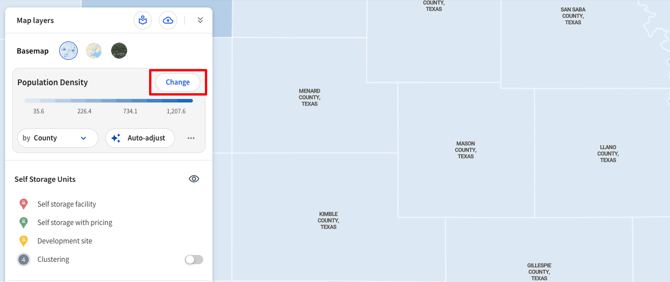
- Available Metric Categories:
- Population Data
- Household Data
- Storage Facility Data
- Storage Saturation Data
- Crime Index
- Tip: The darker/lighter shading represents the value of each metric.
Clicking into a shaded area (county, ZIP, etc.) displays the specific value for that region.
Changing Geography Levels
You can adjust the level of geography you’re viewing by clicking the “Change Geography Level” dropdown menu:
- State → MSA → County → ZIP code → Block group
- Example: Zooming into Travis County, TX, will show county-level density. Switching to ZIP code will break the map into ZIP-level detail.

Storage Facility Pins
As you zoom in past zoom level 9, storage facility pins appear:
- Green: Facilities with pricing information
- Red: Facilities without pricing information
- Yellow: Development sites
You can toggle clustering on or off to group facility number totals in a region or individual pins.
Additional Map Layers
- Housing Developments: Size of circles represent the size of the project (in housing units)
- Parcels: Parcel boundaries for storage facilities
- Traffic Counts: Average daily traffic volumes, shown by road density
- Flood Zones: FEMA flood zone overlays
- Commercial Developments: Pins categorized by type (e.g., industrial, retail, educational, restaurant)
You can show/hide any layer by toggling it in the left-hand panel.

Base Maps
You can switch the map style depending on your needs:
- Standard TractIQ shaded map
- Street View map
- Satellite imagery

Adding Layers
For Pro users: Navigate to the top left, click Add Layers to access the Layer Library.
- Most layers apply nationwide; others are location-specific (e.g., NYC neighborhoods).
- Select a layer (e.g., Signal Brands), click Add, and it will appear in your left-hand layers panel.
- You can hide/unhide layers just like any others.

Wrapping Up
The TractIQ Map gives you powerful tools to:
- Visualize demographic and facility data
- Compare markets across multiple geographies
- Overlay housing, traffic, and development activity
- Customize your view with additional layers
If you have questions about map features or need help navigating, reach out to our team anytime. We're here to help!