
For Buyers and Investors: Finding On-Market and Listed Facilities
If you are looking at acquisitions, you can now filter for facilities that are on the market or listed right inside the tools you already use. There are three places to do this: the prospecting tool, the map, and the Listings page.
First, a quick note on what the three listing statuses mean:
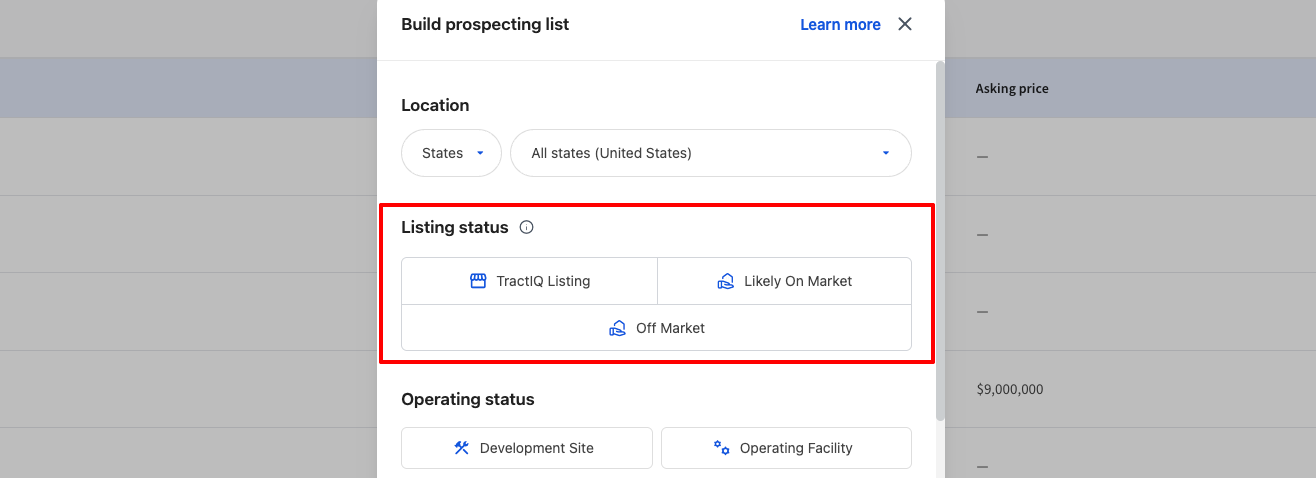
- TractIQ Listing: an actual listing added to TractIQ directly by a broker.
- Likely On-Market: we have received publicly available signals that the facility or development site is likely on the market.
- Off-Market: we could not detect any listing activity that indicates the facility is for sale.
Option 1: The Prospecting Tool
- From your dashboard, click Create, then Build Prospecting Tool.
- Look for the Listing Status filter. You will see the three buckets: TractIQ Listing, Likely On-Market, and Off-Market.
- Select the status you want to prospect across. For example, choose TractIQ Listing to pull only broker-added listings, or prospect across all three.
- From there, build your list as you normally would by facility type, region, area, and so on.
- Save the list and give it a name.
Once your list pulls in, click into any facility to see its on-market indicator and run your underwriting. When a site looks worth a conversation, click View Details to see who to contact: the brokers on the deal, the asking price, and the information the brokers themselves have entered on the site.
Option 2: The TractIQ Map
You can also spot listings right on the map.
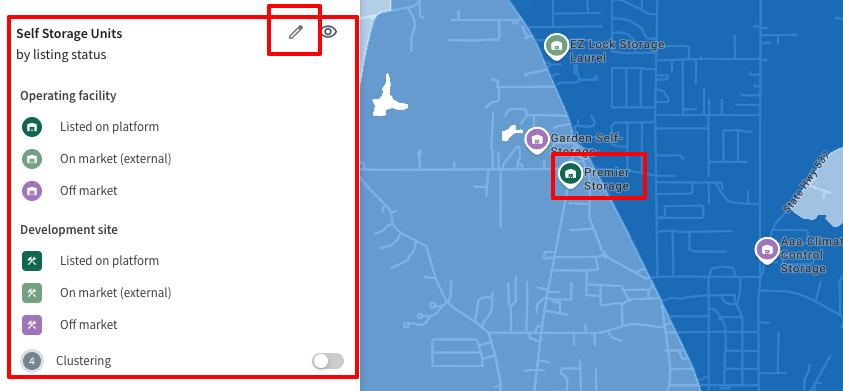
- On the map, open the color settings button and choose color facilities by listing status.
- Use the key to read the pins: dark green is listed directly on TractIQ, light green is on market, and purple is off market.
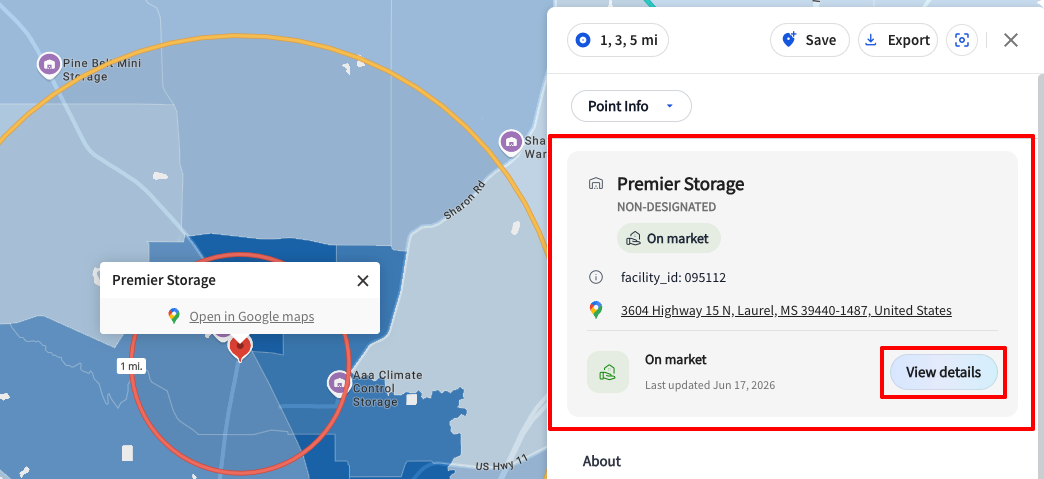
- Click any dark green pin, then View More Details, and you will see the on-market indicator confirming it is listed within TractIQ.
- Click View More Details again to jump to the Listings marketplace, where you can see other listed sites and dig into this one: brokers, description, investment highlights, photos, and the rest of the information the broker submitted.
From there it is up to you whether to reach out.
Option 3: The Listings Page
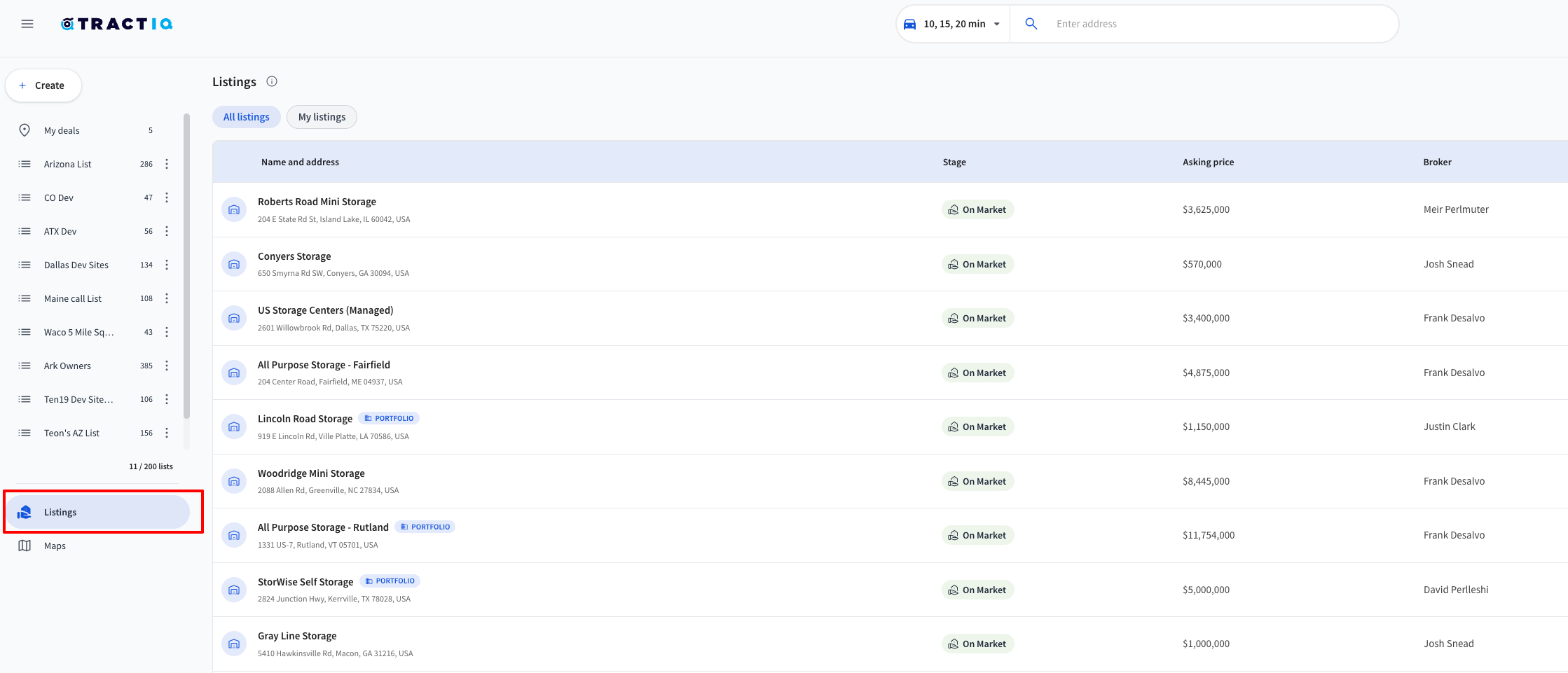
For a clean, top-down view of everything listed in TractIQ, head to the Listings page in the left menu. This is the fastest way to scan every listing in one place without building anything first.
A few things you can do here:
- Toggle between All listings to see every listing on the platform and My listings to see only the ones you have created.
- Read the key details at a glance in the table: name and address, stage (on market, under LOI, and so on), asking price, broker, and market data like population, population growth, and drive-up square footage per capita.
- Sort, filter, and add or remove columns so the view shows exactly what matters to you. You can filter or sort by any visible columns.
- Use the search bar to jump straight to a specific facility or address.
Click into any listing to open its full detail page, where you will find the brokers, description, investment highlights, photos, and supporting documents.
That covers all three ways to find on-market and listed facilities. If you have any questions at all, just reach out to our team and we will be happy to help.