
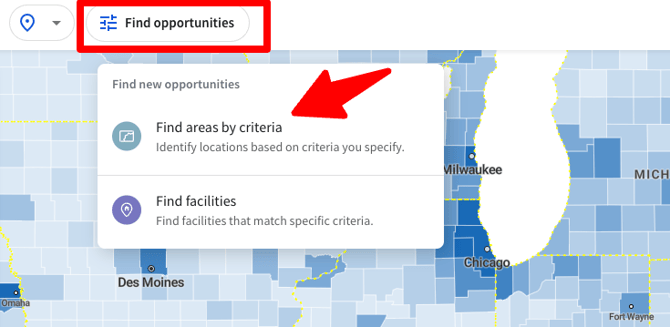
How to Use Criteria Filters
- Open the TractIQ Map
From the top toolbar, select Find Opportunities → Find Areas by Criteria.
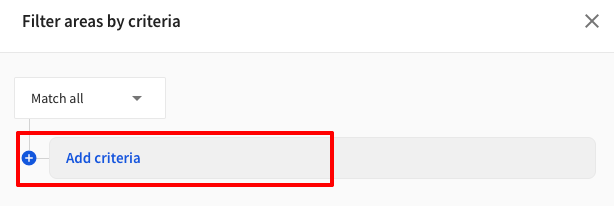
- Add Criteria
Click Add Criteria to choose from a wide range of metrics, such as:
- Population growth
- Median household income
- Housing data
- Self-storage metrics (e.g., square footage per capita)
- Population growth
- For example, you could filter for areas with population growth above 4% and median household income above $75,000.

- Interpret the Map
- Areas shaded in a solid color = meet your selected criteria.
- Areas with lines = do not meet criteria or meet some of your criteria
- Click on a shaded area to view exact values and see how it compares to your thresholds.
- Areas shaded in a solid color = meet your selected criteria.
- Adjust Geography Levels
Switch between different levels for more detail:
- State → MSA → County → ZIP Code → Block Group
- State → MSA → County → ZIP Code → Block Group
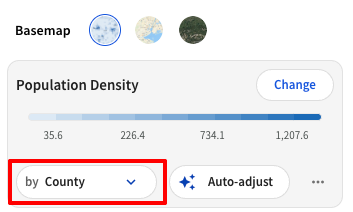
- Zooming in will reveal more granular areas that match your filters.
- Save Your Map
After setting your filters, click Save Map to store it in your dashboard. This makes it easy to revisit later without reapplying all your criteria. Many users like to save different maps for different markets and market sizes they’re prospecting.
Why Use Criteria Filters?
This tool helps you:
- Identify high-potential investment areas.
- Compare regions side by side with consistent metrics.
- Quickly rule out areas that don’t meet your standards.