Managing who has access to your TractIQ account is simple; but it’s something only admin users can do. If you’re a standard user, you won’t see these options in your account.
Admins can add new team members, remove users, and update roles directly within the platform. Here’s how:
Accessing Account Management
- Click on your name in the top right corner of TractIQ.
- In the drop-down, select Manage Your Account.
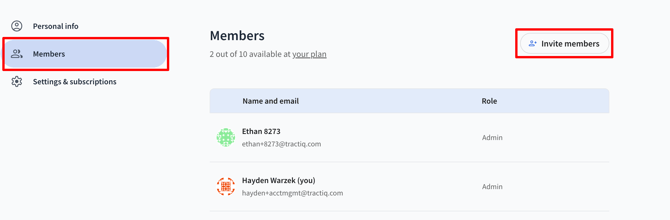
- You’ll land on the Personal Info page. From here, click into Members to see your current user list.


Adding a New User
- Click Invite Members.
- Enter the new user’s email address.
- Assign their role:
- Member – standard access.
- Admin – full account management privileges.
- Member – standard access.
- Hit Send Invite.
If you’ve already reached your user seat limit (for example, 5/5 seats filled), the system will prompt you to contact our team to add more seats to your subscription.
Removing or Editing Users
From the Members tab, you can:
- Remove a user if they no longer need access.
- Change their role (e.g., upgrade a member to an admin).
Updating Organization Info
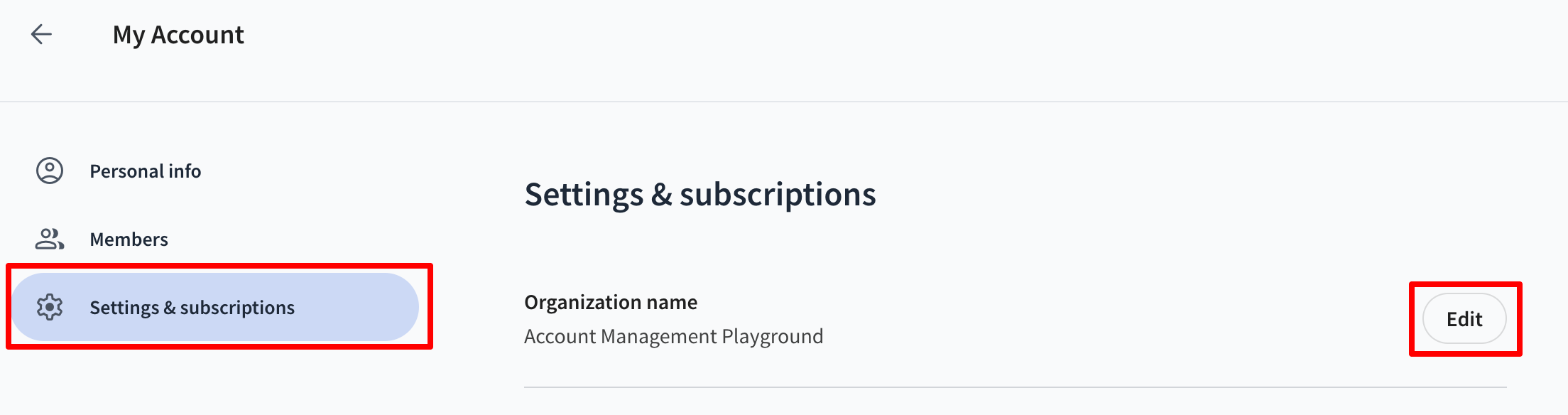
In the Settings & Subscriptions section (just below Members), you can edit your organization’s name if needed.